
Change Password
Submission
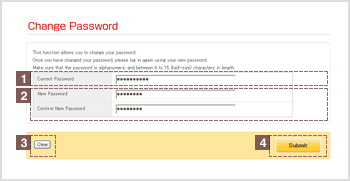
*Contents displayed represent samples.
1Current password
Enter your current password.
2Enter a new password, then re-enter it for confirmation
Create a new password with 6-15 alphanumeric characters.
Enter it two times for confirmation.
- We recommend an alphanumeric password which contains a combination of numeric and alphabetical characters.
(Your plan document may stipulate that your password contain both numeric and alphabetic characters.) - Passwords are case sensitive.
- Symbol characters which may be used in passwords:
! @ # $ % ^ & * ( ) - = _ + [ ] { } ‘ : . / ?
(Some corporate-type DC pension plans have specific requirements for passwords such as the number of characters and combinations of numbers and alphabets.)
| * | For security purposes, the password you enter is displayed as a series of asterisks. |
|---|
3"Clear" button
Click "Clear" to delete the information you have entered.
4"Submit" button
Click "Submit" to change your password.
Password Updated
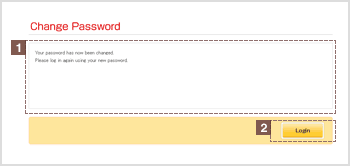
*Contents displayed represent samples.
5Password updated message
Once you have submitted your request to change your password, the message will be displayed.
6"Log In" button
You must now log in again using your new password.
Click Log In to access the Log-in screen.